The Best IPTV Player for LG Smart TV (webOS)
Table of contents
- IPTV on LG TVs: What You Need to Know
- What Makes the Best IPTV Player for LG Smart TV?
- Orca Player on LG webOS: Key Features
- How to Install Orca Player on an LG Smart TV
- Setting Up Your Playlist on LG
- Activating Orca Player After the Trial
- Common Problems and Quick Fixes
- Frequently Asked Questions
- The Verdict
Quick answer: The best IPTV player for LG Smart TV is Orca Player. It runs natively on webOS, works with both the standard remote and the LG Magic Remote, supports M3U playlists and Xtream Codes, and includes a 7-day TV guide, catch-up and 4K playback. You can try it free for seven days, then keep it for a one-time €9.99.
LG makes some of the most popular smart TVs in the world, especially its OLED range. But the IPTV apps available for webOS are a mixed bag. This guide explains what to look for, why Orca Player is our pick, and how to get it running on your LG TV in a few minutes.
Note: Orca Player is a media player only. It doesn't sell or include any channels — you bring your own playlist from an IPTV provider.
IPTV on LG TVs: What You Need to Know
LG Smart TVs run webOS. Like Samsung's Tizen, webOS doesn't allow sideloading apps from the web, so everything comes from the LG Content Store. That's safer, but it also means you have fewer choices.
It's also worth knowing the difference between an IPTV player and the free channels LG already includes. LG Channels is a free, ad-supported service with a fixed lineup chosen by LG. An IPTV player is different: it plays your playlist, from the provider you pay for, with your channels, movies and series. If you already have an IPTV subscription, a dedicated player is what you need.
What Makes the Best IPTV Player for LG Smart TV?
A good webOS IPTV app should do five things well:
- Load large playlists fast, even with thousands of channels.
- Show a proper EPG, so you know what's on now and later.
- Work with the Magic Remote, including pointer and scroll, as well as the arrow keys.
- Make use of LG's picture quality, with smooth 4K playback through hardware decoding.
- Keep setup simple, without hunting for letters on the on-screen keyboard.
Orca Player on LG webOS: Key Features
A layout made for living rooms
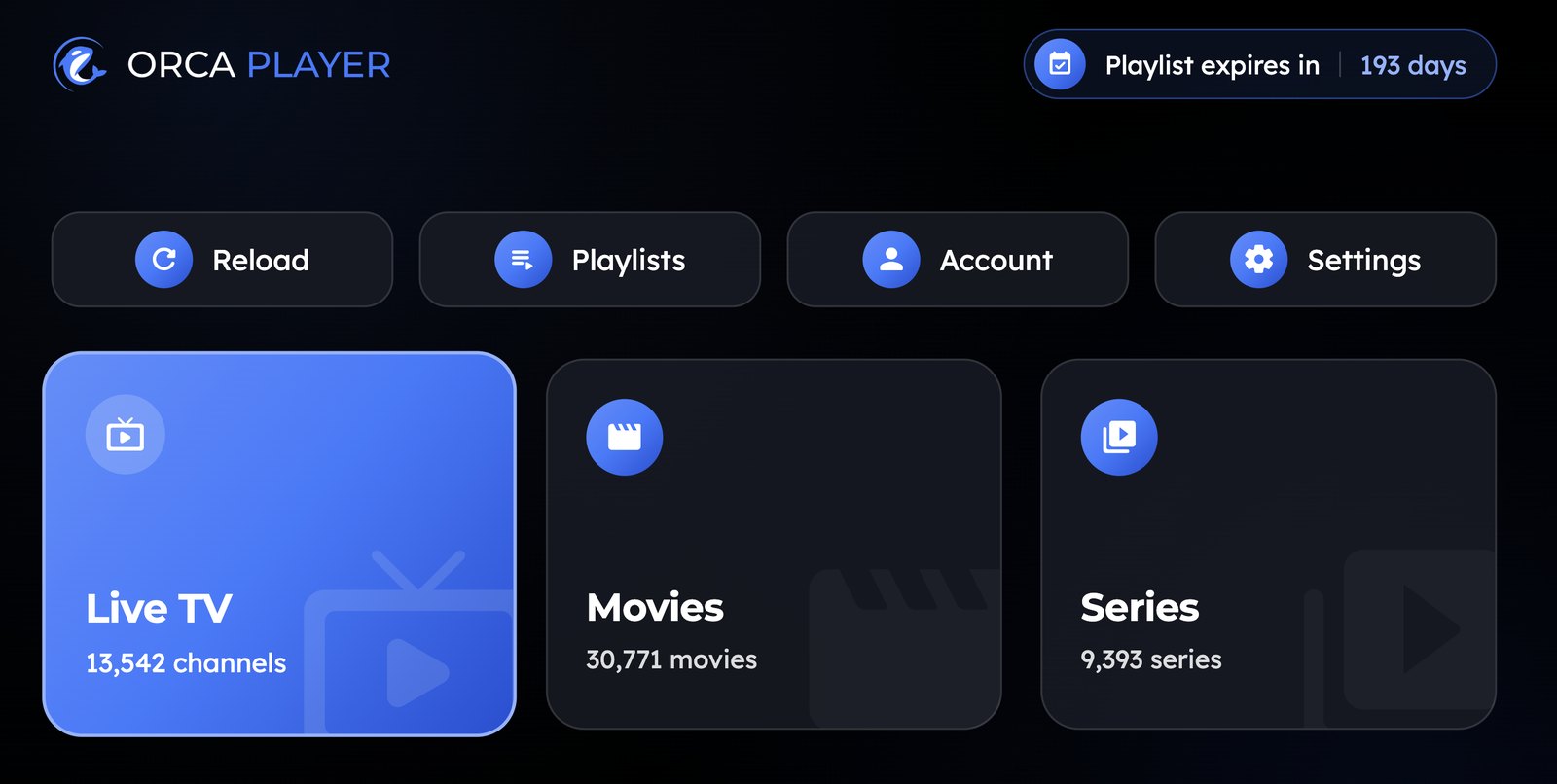
Orca Player separates Live TV, Movies and Series into clear sections. On the Live screen you see categories, the channel list, a live preview and the TV guide at the same time. Browsing feels quick whether you use the arrow keys or point and click with the Magic Remote.
Your playlist, added from your phone
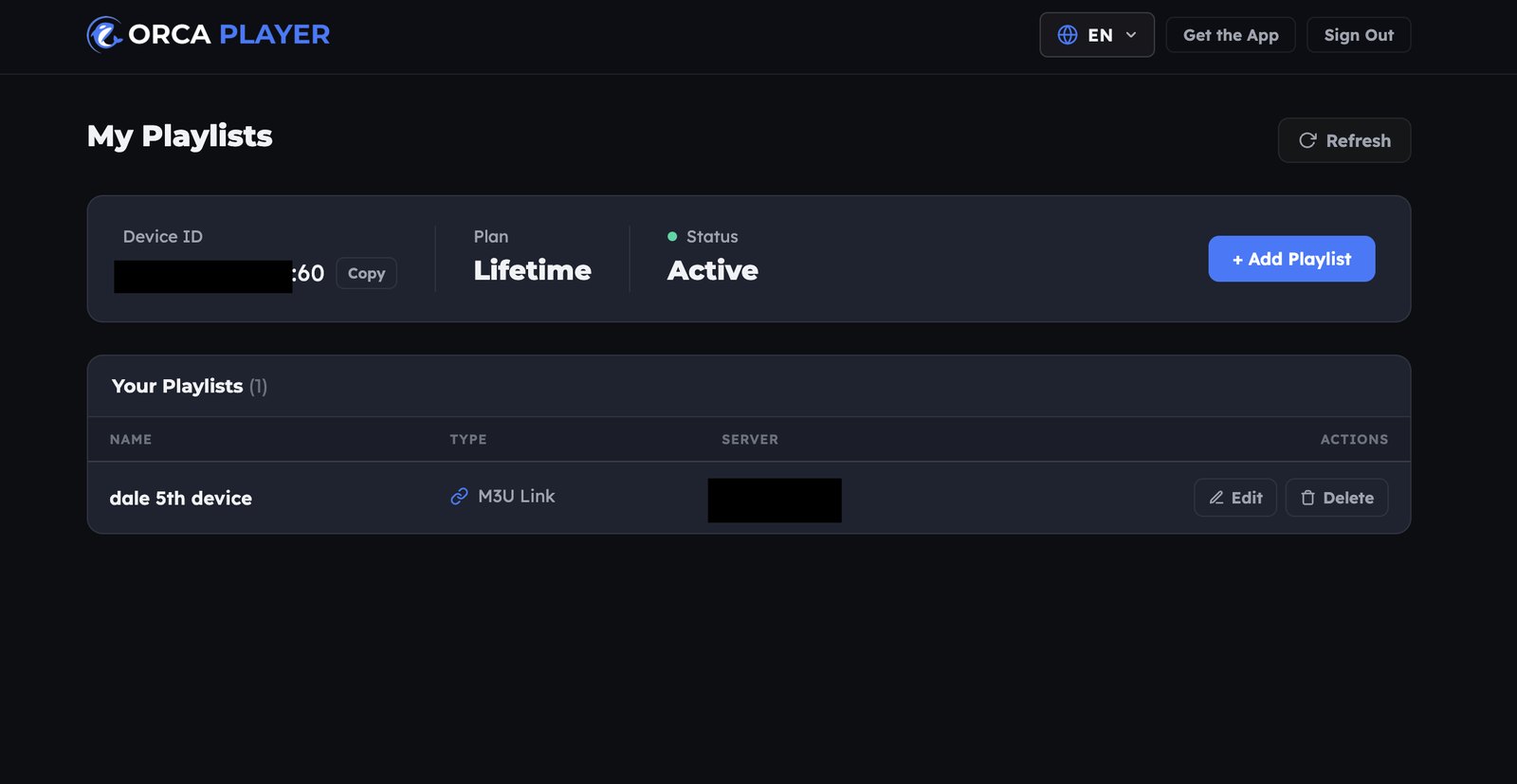
Instead of typing on the TV, open Orca's web dashboard on your phone. Enter the Device ID and Device Key shown on your LG TV, then add your M3U link or Xtream Codes login. Your channels appear on the TV, sorted by category.
Everything a serious viewer needs
| Feature | Why it matters on an LG TV |
|---|---|
| 7-day EPG with XMLTV | Plan your viewing without picking up your phone |
| Catch-up and time-shift | Rewind live TV when your provider supports it |
| Continue Watching | Resume movies and episodes at the exact second |
| Instant search | Find any channel, film or series as you type |
| Multiple playlists | Switch between providers in a couple of clicks |
| Audio and subtitle tracks | Change language mid-stream; external subtitles supported |
| Parental control | Hide adult categories behind a key |
| SD up to 4K and 8K | Smooth, sharp playback on OLED and QNED panels |
Fair pricing with no subscription traps
Many TV IPTV apps charge per device, and some renew automatically. Orca keeps it simple: a 7-day free trial, then €4.99 for a year (no auto-renewal) or €9.99 once for lifetime access. Every plan includes every feature.
How to Install Orca Player on an LG Smart TV
- Press the Home button on your LG remote.
- Open the LG Content Store (called Apps on newer models).
- Search for Orca IPTV Player.
- Select Install, then Launch.
- Your free trial starts automatically. Note the Device ID and Device Key on screen.
Orca Player works on LG Smart TVs running webOS.
Setting Up Your Playlist on LG
- On your phone or computer, go to orcaplayer.app/dashboard.
- Log in with your Device ID and Device Key.
- Choose Add playlist, then select M3U link or Xtream Code.
- Paste your details and save. Open Orca Player on your TV and start watching.
Tip: If you have more than one provider, add each one as a separate playlist. You can switch between them from inside the app.
Activating Orca Player After the Trial
When the seven days are up, visit the Orca Player activation page. Enter your Device ID and Device Key, pick the Yearly or Lifetime plan, and pay securely with PayPal. Your LG TV unlocks right after payment — no reinstall needed.
Common Problems and Quick Fixes
- Channels won't play: Check that your subscription is active and that the stream works on another device.
- Empty TV guide: Your provider must supply EPG data. Ask them for an XMLTV link if it's missing.
- Buffering: Use a wired Ethernet connection if you can. LG TVs' Wi-Fi can struggle with 4K streams in busy homes.
Frequently Asked Questions
Is there a free IPTV player for LG Smart TV?
Orca Player is free to install and fully usable for seven days. After that, plans start at €4.99.
Does Orca Player work with the LG Magic Remote?
Yes. You can navigate with the pointer or the arrow keys.
Can I watch IPTV on an older LG TV?
It depends on your webOS version. Check the store listing for compatibility.
Does Orca Player include TV channels?
No. It only plays the M3U or Xtream Codes playlist you add.
Is it legal to use an IPTV player on LG TV?
Yes. The app is legal software. You're responsible for making sure your playlist content is licensed.
The Verdict
Your LG TV deserves better than a slow, confusing IPTV app. As the best IPTV player for LG Smart TV, Orca Player gives you a fast webOS interface, Magic Remote support, a full program guide and fair one-time pricing. Install it, add your playlist from your phone, and enjoy a free week of better live TV.


