The Best IPTV Player for MacOS: Why Orca Player Is Worth It
Table of contents
Finding the best IPTV player for MacOS is harder than it should be. Many Mac users start with VLC, quickly discover it has no real TV guide, and end up searching for something better. Orca Player is that something better. It brings live TV, movies, series, a 7-day EPG and multi-playlist support to your Mac in a clean interface, with a 7-day free trial and a one-time lifetime price of €9.99.
This guide compares your options on Mac, explains what Orca Player does differently, and walks you through installation and setup.
Note: Orca Player is a media player only. It doesn't sell or include any channels. You use a playlist from your own IPTV provider.
Why Watch IPTV on a Mac?
A Mac is a great IPTV screen. MacBooks have sharp Retina displays and long battery life, and an iMac or a Mac connected to a large monitor works as a second TV in your office or bedroom. You can keep a live news or sports channel open while you work, or catch up on a series in the evening without moving to the living room.
The problem is the software. macOS doesn't come with an IPTV player, and the general-purpose players most people know weren't designed for live TV.
Your Options for IPTV on MacOS
VLC and general media players
VLC is free and can open an M3U file. But it treats your playlist as a long list of links. There's no channel grid, no proper program guide, no Xtream Codes login, no organized movie library and no catch-up. It's fine for testing a link, not for daily viewing.
Web-based players
Some providers offer a browser player. These are convenient, but they often have limited features, depend on the provider's website, and stop working when you change provider.
A dedicated IPTV player
A dedicated app is built around live TV: categories, EPG, VOD libraries, favorites and resume. This is where Orca Player comes in.
| Feature | VLC | Orca Player |
|---|---|---|
| M3U playlists | Yes | Yes |
| Xtream Codes login | No | Yes |
| 7-day EPG (XMLTV) | No | Yes |
| Movies and series library with posters | No | Yes |
| Catch-up and time-shift | No | Yes (provider-dependent) |
| Continue Watching | Limited | Yes |
| Favorites synced across devices | No | Yes |
| Parental control | No | Yes |
Why Orca Player Is the Best IPTV Player for MacOS
A real TV experience on your desktop
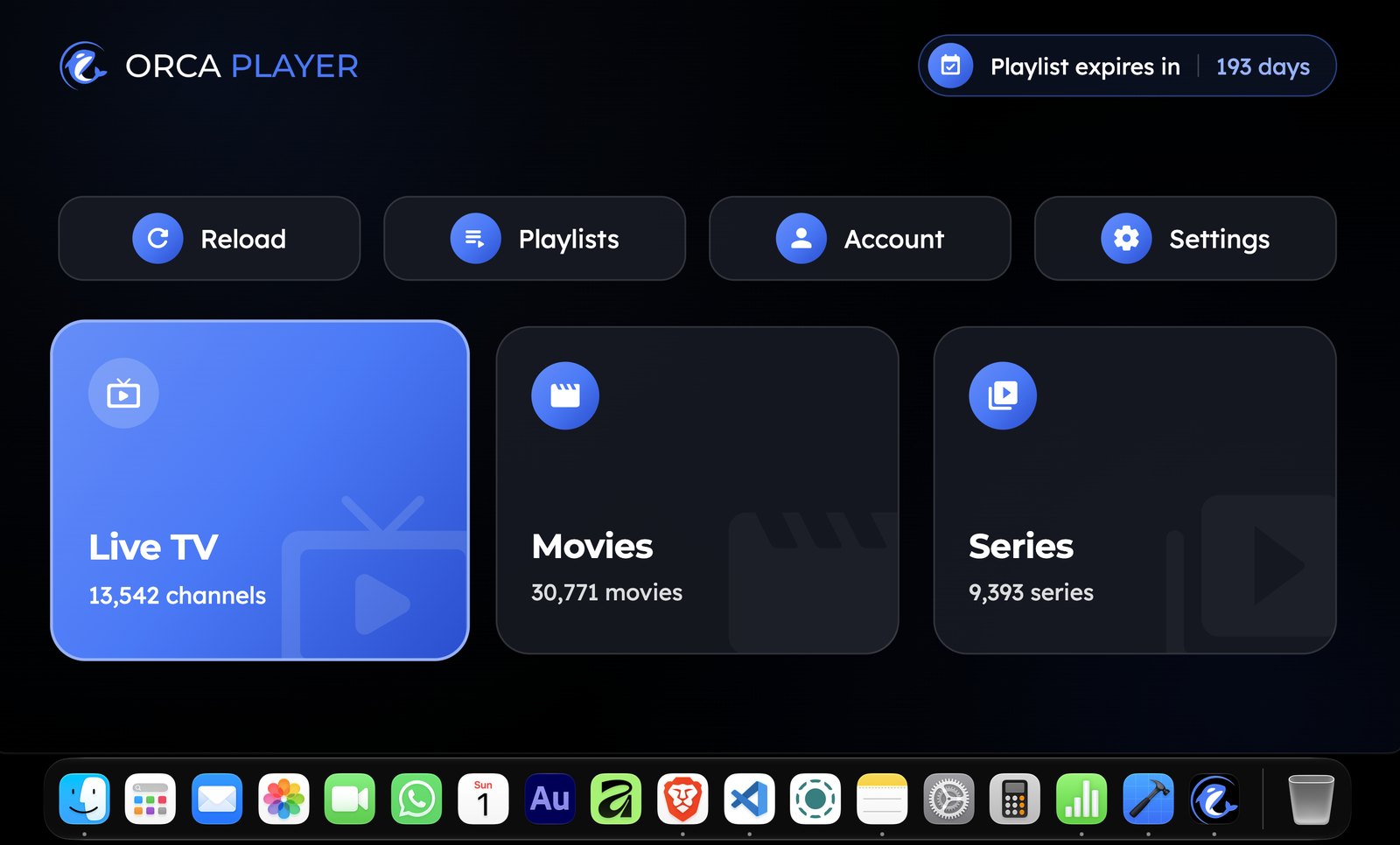
Orca Player organizes your content into Live TV, Movies and Series. The Live screen shows categories, channels, a live preview and the TV guide together, which suits the wide screen of a Mac perfectly. You can see what's on now and next across all your channels at a glance.
Multiple providers, one app
If you use more than one IPTV provider, add each as a separate M3U or Xtream Codes playlist and switch between them instantly. No more juggling different apps or browser tabs.
Smooth playback up to 4K
Orca uses hardware-accelerated decoding and supports every quality from SD up to 4K and 8K, depending on your provider's streams and your Mac. Multiple audio tracks and subtitles, including external subtitle files, can be changed during playback.
Your library follows you
Favorites sync across all your activated devices, and Continue Watching remembers your position in every movie and episode. Star a channel on your Mac and it's waiting on your phone or TV.
Features for everyone in the house
Instant search finds channels, movies and series as you type. Parental control locks categories behind a key. The interface is available in more than 15 languages.
How to Install Orca Player on Mac
- Open the App Store on your Mac.
- Search for Orca IPTV Player.
- Click Get, then Install.
- Launch Orca Player from Launchpad or your Applications folder. Your 7-day trial starts automatically.
How to Add Your Playlist on MacOS
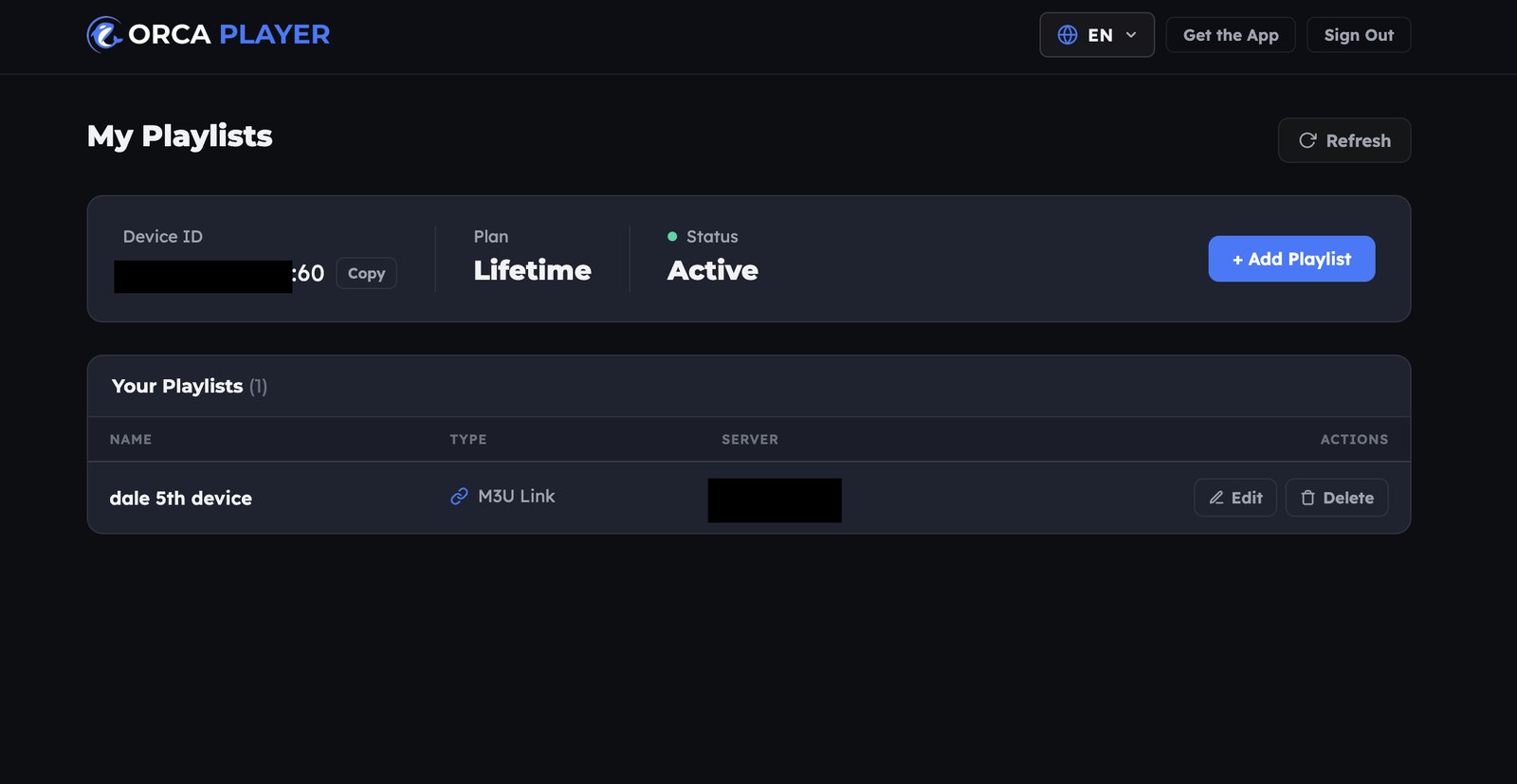
- Open Orca Player and note the Device ID and Device Key.
- Enter your M3U URL or Xtream Codes details in the app, or open the Manage Playlist dashboard in Safari and add them there.
- Your content loads and is sorted into categories automatically.
Because you're already on a computer, copying and pasting a long M3U link takes seconds.
Tips for the Best IPTV Experience on Mac
- Use Ethernet or 5 GHz Wi-Fi for 4K streams to reduce buffering.
- Plug in your MacBook during long sports events or movie nights to avoid battery throttling.
- Use an external display to turn your Mac into a full-size TV for the bedroom or office.
- Build a favorites list so your most-watched channels are always one click away.
Pricing
All plans include every feature, with no hidden fees:
- Free trial: 7 days, automatic on first launch.
- Yearly: €4.99, a one-time payment that doesn't renew automatically.
- Lifetime: €9.99, paid once.
When your trial ends, visit the activation page, enter your Device ID and Device Key, choose a plan and pay with PayPal. Your Mac unlocks instantly.
Frequently Asked Questions
Can I use VLC as an IPTV player on Mac?
Yes, for basic M3U playback. But it has no EPG, no Xtream Codes login and no organized movie or series library.
Is Orca Player available on the Mac App Store?
Yes. It's distributed through the App Store, the same as on iPhone and iPad.
Does Orca Player include channels?
No. It's a player. You need your own M3U or Xtream Codes subscription.
Can I use Orca on my Mac and my TV?
Yes. Orca also runs on Android, Android TV, Fire TV and Windows, with more platforms on the way.
Is it legal to use an IPTV player on MacOS?
Yes. The app is legal. Make sure the content you watch is licensed in your country.
Final Thoughts
The best IPTV player for MacOS should give you more than a list of links. Orca Player offers a proper TV guide, Xtream Codes support, an organized movie and series library, catch-up and synced favorites, all for a fair one-time price. Install it, add your playlist and enjoy your first week free.


